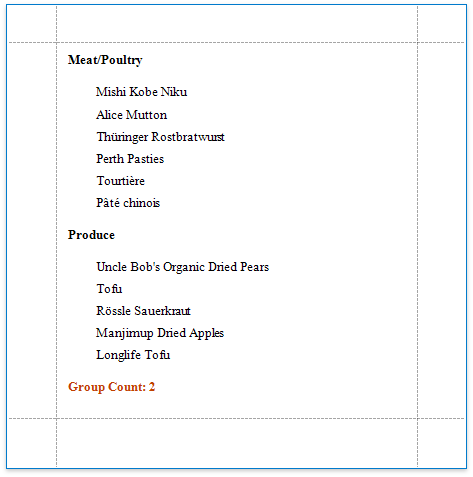
Count the Number of Groups in a Report
This document describes how to count the number of groups in a report.
-
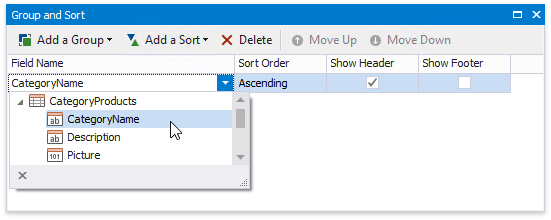
Switch to the Group and Sort panel and create a new group. Enable the Show Header option to display the Group Header in the report.
-
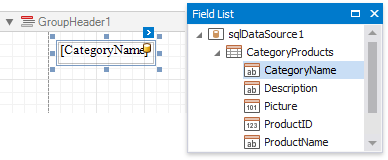
Switch to the Field List and drop the group field onto the created Group Header.
-
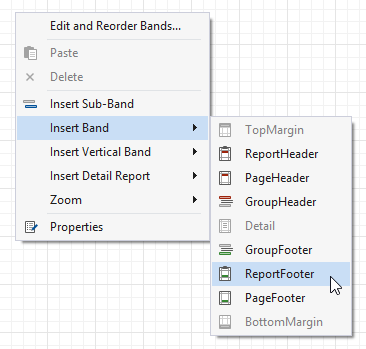
Right-click the report's surface and add a Report Footer to the report.
-
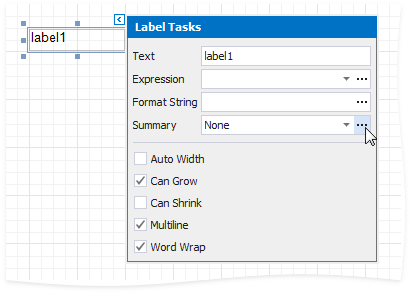
Drop a label onto the Report Footer and click its smart tag. In the invoked Label Tasks window, click the Summary property's ellipsis button.
-
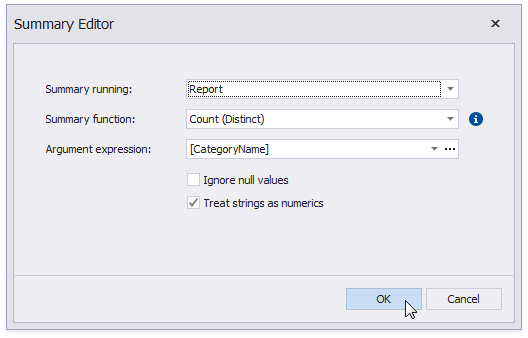
In the Summary Editor window:
- Set the Summary running property to the Report value.
- Set the Summary function property to Count (Distinct).
- Set the Argument expression property to the field you group the data by.
-
Back in the Label Tasks window, you can use the Format String property to format the summary's value:
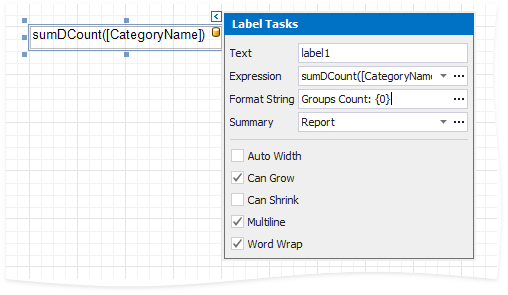
You can see the group count in the report footer when switching to Print Preview.