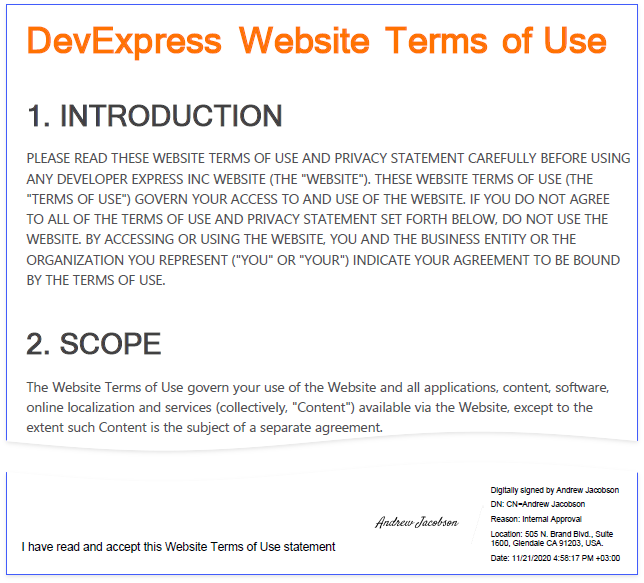
Reports with a Visual PDF Signature
This tutorial describes how to create a report with a visual PDF signature.

Create a Report Layout
-
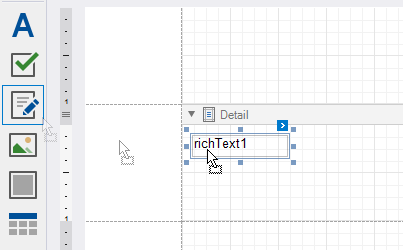
Drop the RichText control from the report controls Toolbox tab onto the Detail band.
-
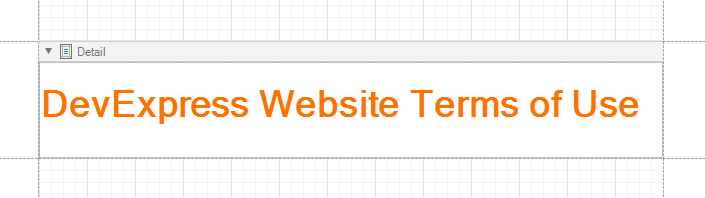
Double-click the control and insert the DevExpress Website Terms of Use text.
-
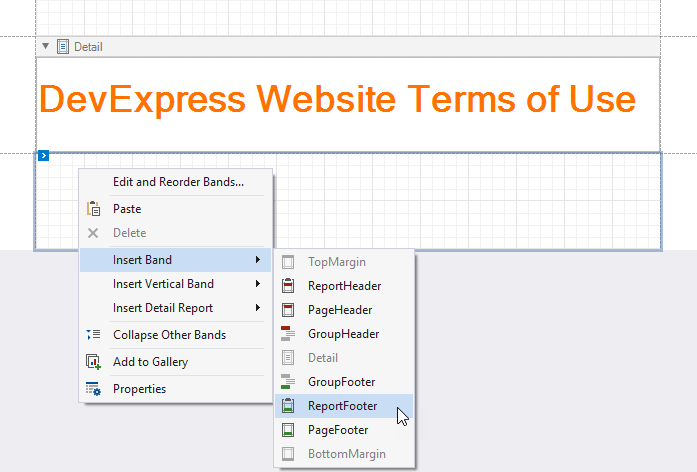
Right-click the design surface. Select Insert Band / ReportFooter from the context menu. Enable the footer band's Print at Bottom property.
-
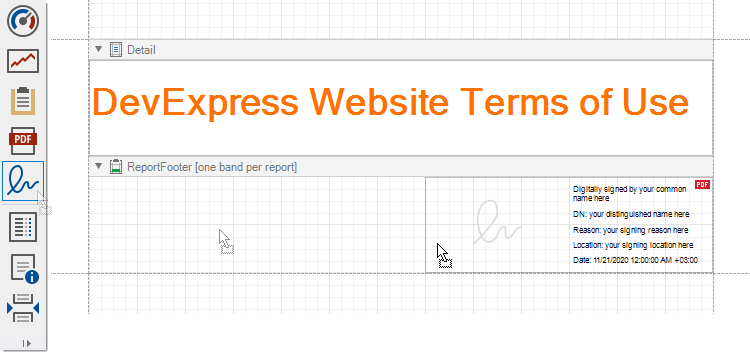
Drop the PdfSignature control from the report controls Toolbox tab onto the Report Footer band.
-
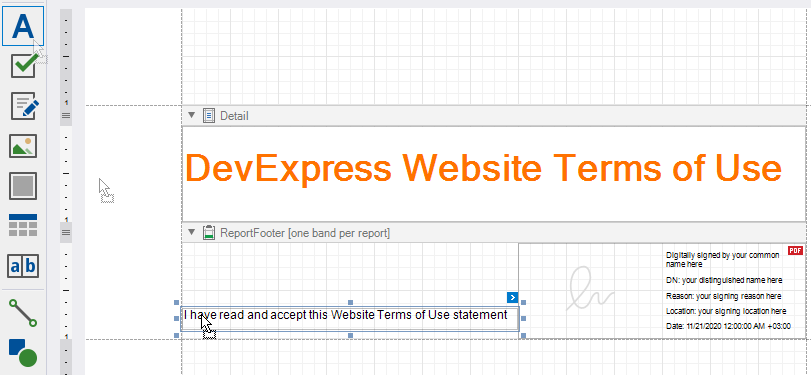
Place the Label control to the left of the PdfSignature control and add the following text: I have read and accept this Website Terms of Use statement.
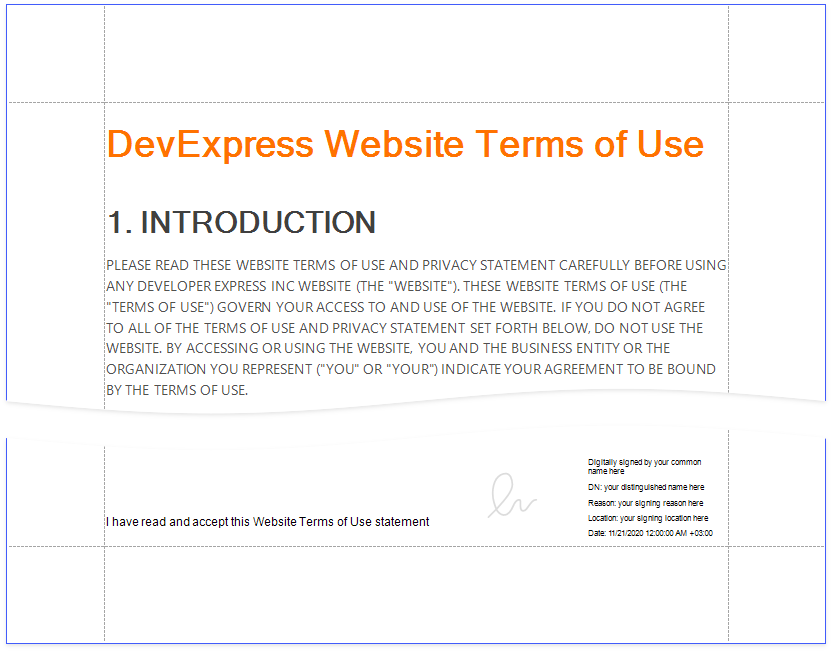
Click the Preview Tab to show the result.
Export and Sign the Report
-
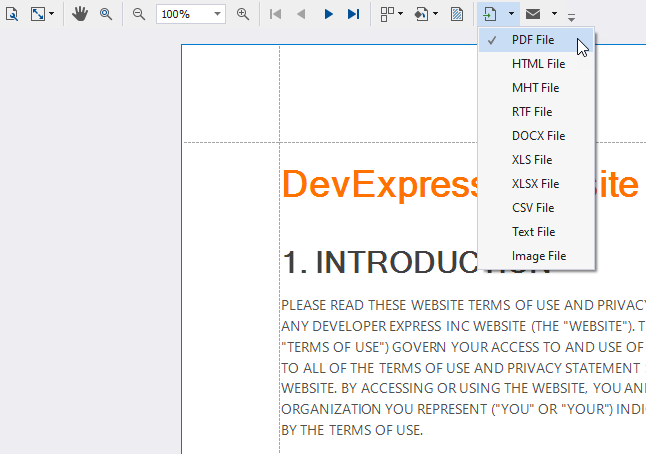
In Preview, click Export Document and select PDF File.
-
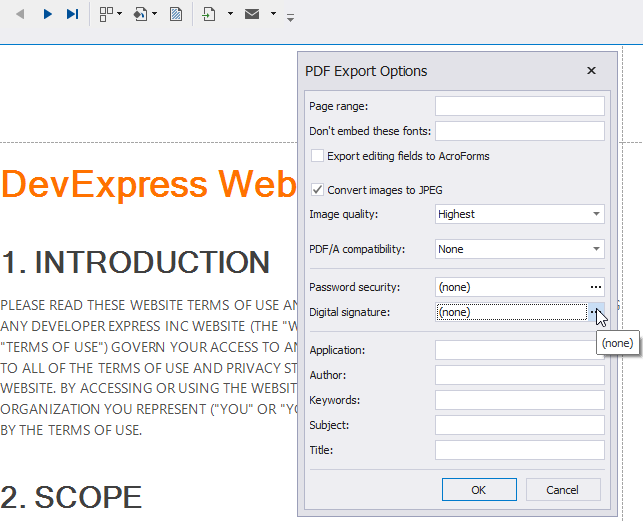
In the invoked PDF Export Options dialog, click the Digital Signature option's ellipsis button.
-
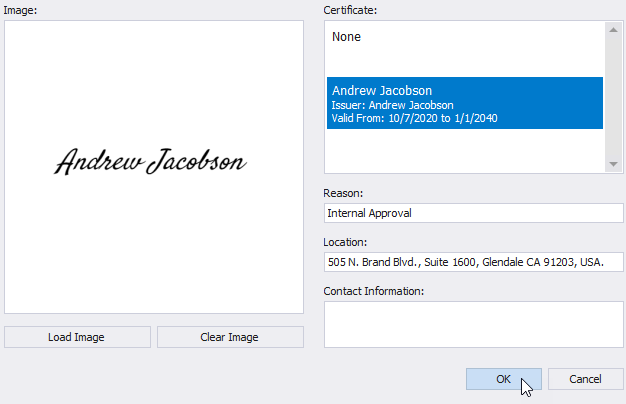
In the invoked Signature Options dialog, choose a certificate and specify signature details.
Save and open the document to show the final result.