Add Page Numbers
The tutorial describes how to add page numbers to your reports.
Add Page Numbers
Do the following to add page numbers to a report:
-
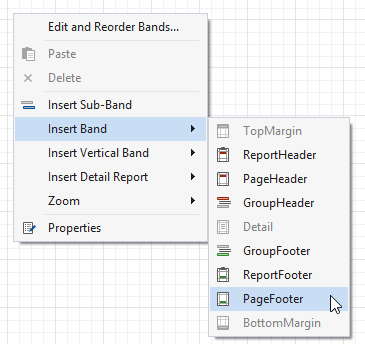
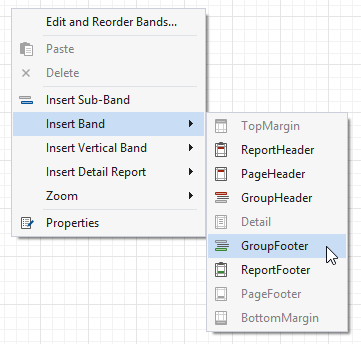
Create a PageFooterBand in your report. To do this, right-click anywhere in the report designer, and in the context menu point to Insert Band, and then click PageFooter.
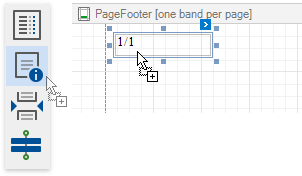
 - Drop the Page Info control from the Toolbox to the PageFooter band.
 - To change the control's display format, click its smart tag, and in the invoked actions list, specify the Text Format String property (e.g., Page {0} of {1}, to display the current page number out of the total number of pages).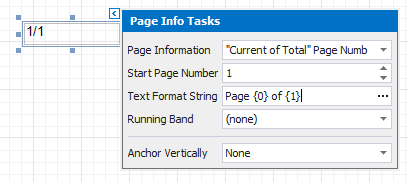
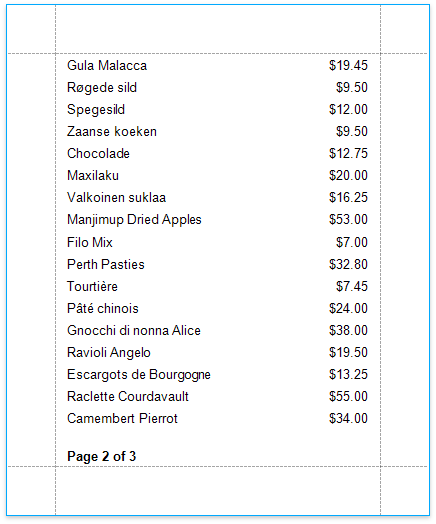
The following image illustrates the resulting report:
Add Page Numbers for Groups
Do the following to make your report display page numbers for groups or detail reports:
-
Add the GroupFooter band. To do this, right-click anywhere on the report's surface, and in the invoked menu, point to Insert Band and click GroupFooter.
[!NOTE] You can force the group header and/or the group footer to be repeated on each page, using the GroupBand's Repeat Every Page property. - Next, force each new group to start on a separate page. Otherwise, group page numbers will be calculated incorrectly.
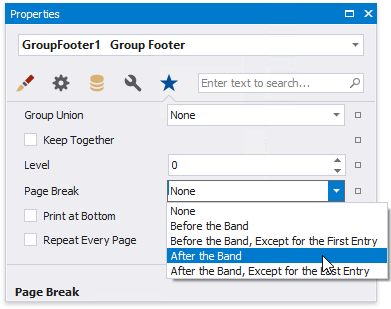
To do this, select the Group Footer, and set its Page Break property to After the Band.
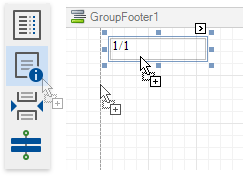
 - Drop the Page Info control from the Toolbox onto the GroupFooter (or GroupHeader) band.
 - Select the created control, and set its Running Band property to GroupHeader1.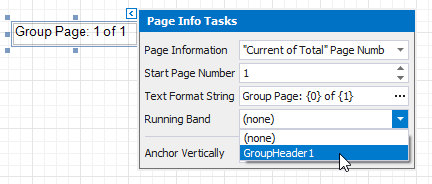
[!TIP] You can use the Text Format String and Page Information properties to adjust the way the control represents its contents.
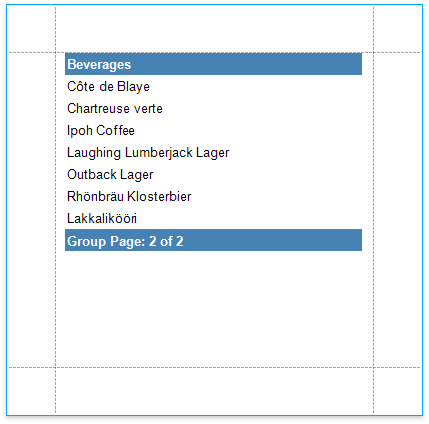
The following image illustrates the resulting report: